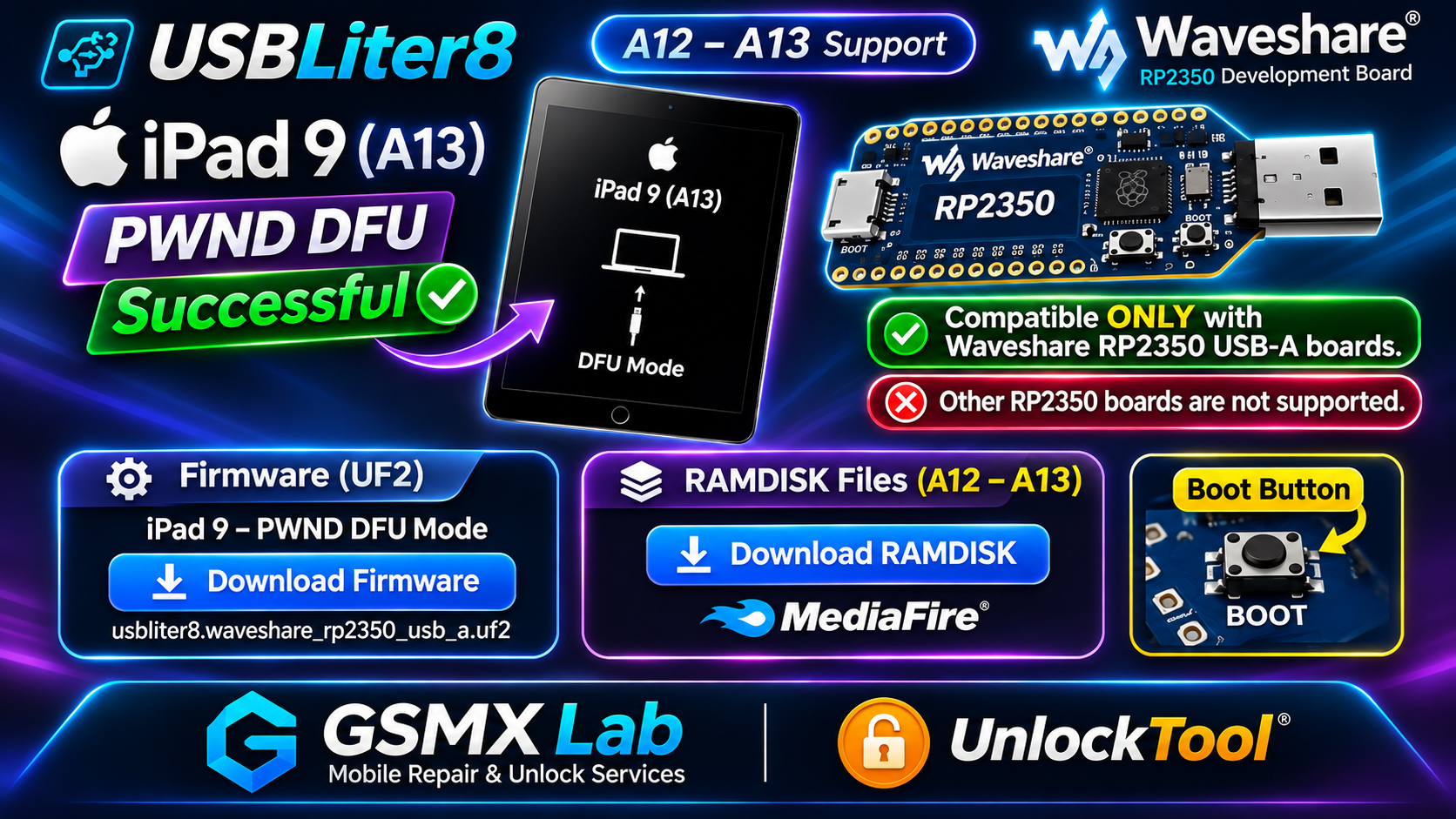
Download USBLiter8 iPad 9 (A13) PWND DFU firmware for Waveshare RP2350 USB-A. Includes the correct UF2 file, seven BOOT-mode flashing steps and A12/A13 RAMDISK downloads. Other RP2350 boards are not supported by this firmware release.
USBLiter8 iPad 9 (A13) PWN DFU Firmware & Flash Guide
Download the USBLiter8 firmware resource for Waveshare RP2350 USB-A and follow the seven-step UF2 installation guide. This updated A12/A13 resource highlights iPad 9 (A13), the correct BOOT button, the USB drive name and separate RAMDISK download resources.


The iPad illustration and PWND DFU label are promotional visuals, not an independent test-result screenshot.
Download USBLiter8 iPad 9 A13 PWN DFU Firmware
Use the MEGA download link below for the firmware resource shared with this update. The required filename for the Waveshare RP2350 USB-A board is shown exactly as provided. Check the actual downloaded contents before flashing, because package contents may change.
USBLiter8 Firmware – Waveshare RP2350 USB-A
Device: iPad 9 (A13)
Board: Waveshare RP2350 USB-A
Correct Firmware File:
usbliter8.waveshare_rp2350_usb_a.uf2
Download USBLiter8 iPad 9 Firmware – MEGA ↓
If the download is an archive, extract it first and locate the exact UF2 file. Verify the firmware source and board compatibility before flashing.
What Does a .UF2 File Do?
A UF2 file is a firmware image that an RP2350 board can accept through its USB bootloader drive. Copying the correctly built UF2 image programs the microcontroller.
When the write succeeds, the USB drive normally disappears as the board reboots.
The UF2 file is not an iPadOS update, Apple RAMDISK file or iCloud bypass application. It is firmware intended for the RP2350 board.
How to Flash USBLiter8 Firmware on Waveshare RP2350 USB-A
Follow these seven steps in order. The button is labelled BOOT. When bootloader mode starts, your computer should show a removable drive named RPI-RP2 or RP2350.
Disconnect the Waveshare RP2350 USB-A board from your computer.
Locate the BOOT button on your Waveshare board. Press it and keep it held.
Continue holding BOOT while connecting the board to your computer using a USB data cable through its USB-C port.
Release BOOT after the removable drive named RPI-RP2 or RP2350 appears.
Copy this exact file onto the RP2350 drive:
usbliter8.waveshare_rp2350_usb_a.uf2
Never substitute firmware prepared for another board.
Wait until the copy completes. The USB drive should disconnect automatically as the board reboots. Do not unplug the board during the file transfer.
Reconnect the Waveshare board without holding the BOOT button. This starts the installed firmware normally.
Quick Flash Reference
| Setting | Correct Value |
|---|---|
| Target Board | Waveshare RP2350 USB-A |
| Firmware Filename | usbliter8.waveshare_rp2350_usb_a.uf2 |
| BOOT Button | BOOT |
| USB Boot Drive | RPI-RP2 or RP2350 |
| Connection | Board USB-C port |
| Normal Reconnect | Without pressing BOOT |
USBLiter8 A12/A13: What's New for iPad 9?
USBLiter8 is a specialist firmware resource used with compatible RP2350 microcontroller hardware in particular Apple servicing environments.
The update information shared for this guide highlights support for the iPad 9th Generation (A13), along with the broader A12–A13 device family.
This article focuses on getting the specified hardware ready by installing the correct firmware, rather than guessing which file should be used.
The important detail is the board model. The iPad 9 update described here is compatible only with Waveshare RP2350 USB-A boards.
Other RP2350 boards are not supported for this specific firmware release. The fact that two boards use an RP2350 chip does not make their connectors, pin assignments or firmware interchangeable.
This guide also includes the MEGA firmware link, a MediaFire RAMDISK folder, the required .uf2 filename and step-by-step flashing instructions.
Important: Waveshare RP2350 USB-A Only
Before downloading or flashing anything, identify your RP2350 board. The Waveshare RP2350 USB-A board has a full-size USB-A connector, a computer-facing USB-C connector and on-board control buttons.
For the firmware installation, connect the board to the computer using its USB-C connection and a data-capable cable.
| Board | Compatibility | Action |
|---|---|---|
| Waveshare RP2350 USB-A | Supported by this update | Use the specified USB-A UF2 file |
| Waveshare RP2350 Zero | Not supported by this release | Do not flash the USB-A image |
| Raspberry Pi Pico 2 | Not supported by this release | Use only explicitly compatible firmware |
| Pimoroni Tiny2350 | Not supported by this release | Do not use this USB-A image |
| Other RP2350 Boards | Not supported by this release | Check for a separate board-specific version |
Some previous USBLiter8 releases and other projects may describe additional RP2350 boards. That does not extend compatibility for this specific firmware package.
What You Need Before Flashing
Prepare the correct hardware and firmware before entering bootloader mode. A wrong board or an unsuitable USB cable can prevent successful firmware installation.
You do not need to connect the iPad to the RP2350 board during firmware flashing.
Keep the USB connection stable while copying the UF2 image. Flashing replaces the program currently installed on the microcontroller.
Firmware Flashing vs iPad 9 (A13) PWND DFU
It is important to distinguish three different technical resources:
- RP2350 Firmware: The UF2 application installed on the Waveshare board.
- PWND DFU: A device-specific servicing state that must be verified using compatible tools.
- Apple RAMDISK: A separate software resource prepared for a particular Apple device or build.
Flashing the Waveshare board prepares its microcontroller with a particular firmware application. It does not automatically place the iPad into PWND DFU.
For the iPad 9 (A13), use only workflows that explicitly list the device and the correct hardware/firmware combination.
The board being successfully flashed does not guarantee that a RAMDISK will boot or that a particular servicing operation is available. Results depend on the hardware, iPad model, software build, cables and selected tool.
Download Apple A12/A13 RAMDISK Files
The update also includes a separate MediaFire RAMDISK folder. This folder provides a place to look for related Apple A12/A13 servicing resources.
RAMDISK files are different from the Waveshare UF2 firmware. Do not copy Apple RAMDISK files to the RP2350 bootloader drive.
A12/A13 RAMDISK Files – MediaFire
Open the folder and select the correct file for your device model and supported software build. Check actual filenames and compatibility information before using any download.
Download A12/A13 RAMDISK Files – MediaFire ↗The supplied folder contents may change. Specific iPad 9 RAMDISK filenames have not been independently verified here.
Related iOS 27.2 / 27.3 RAMDISK Guide
GSMUnlockLab also maintains a separate guide with downloadable RAMDISK resources for supported iPhone 11 models, iPhone SE 2020 and older A12 devices.
Do not assume that an iPhone RAMDISK file works on iPad 9 simply because both devices use A13-generation hardware.
Read UnlockTool A12/A13 RAMDISK Guide ↗| Resource | Purpose | Usage |
|---|---|---|
| USBLiter8 .UF2 | RP2350 hardware firmware | Copy to the RP2350 BOOT drive |
| Apple RAMDISK | Apple device servicing resource | Use in a compatible authorized servicing tool |
| Drivers / Software | Computer and device communication | Configure on your computer as required |
Common Waveshare RP2350 USB-A Flashing Problems
1. RPI-RP2 or RP2350 Drive Does Not Appear
Check the USB data cable first. Some USB cables support charging only and do not provide data transfer. Try another known-working data cable, connect directly to your computer and hold BOOT while connecting the board.
2. USB Drive Disappears Before Copying
Disconnect the board and repeat the process. Keep the BOOT button pressed while connecting the cable. Release it only after the removable drive becomes visible.
3. Windows Asks to Format the USB Drive
Do not format the drive merely to install firmware. Cancel unexpected formatting prompts and reconnect the board in BOOT mode. The RP2350 bootloader drive is not ordinary long-term file storage.
4. UF2 File Does Not Copy
Confirm that the downloaded file has the correct .uf2 extension. If the firmware is inside an archive, extract it before copying. Do not copy a ZIP or RAR archive instead of the actual UF2 image.
5. Board Does Not Start After Flashing
Disconnect the board and reconnect without pressing BOOT. If the firmware still does not start, confirm the actual image was built for Waveshare RP2350 USB-A. Re-enter BOOT mode and flash a verified compatible image if needed.
6. Firmware Flashed but iPad Operation Fails
A successful UF2 copy confirms only part of the setup. Check the exact iPad model, supported servicing-tool version, required device state and Apple RAMDISK compatibility. A mismatched device-side resource can fail even when the RP2350 firmware works correctly.
Frequently Asked Questions – USBLiter8 iPad 9 A13
Does USBLiter8 Support iPad 9 (A13)?
The supplied update information highlights iPad 9th Generation (A13). Verify your current servicing-tool support and firmware release before use.
Which RP2350 Board Is Supported?
This update specifically supports Waveshare RP2350 USB-A only.
Can I Use Raspberry Pi Pico 2?
Not with the board-specific firmware described in this guide.
Does Waveshare RP2350 Zero Work?
The supplied release information does not support RP2350 Zero for this particular image.
Which UF2 File Should I Flash?
Use:
usbliter8.waveshare_rp2350_usb_a.uf2
Which Button Enters Flash Mode?
Press and hold the BOOT button while connecting the board to the computer.
What USB Drive Name Should Appear?
Look for RPI-RP2 or RP2350.
Why Does the USB Drive Disappear?
A valid UF2 firmware image normally causes the bootloader to write the image and reboot the microcontroller.
Do I Need the USB-A Socket for Flashing?
No. Use the board's USB-C connection to your computer for the firmware installation.
Is RAMDISK the Same as USBLiter8 Firmware?
No. UF2 firmware runs on RP2350 hardware, while Apple RAMDISK files are separate model-specific servicing resources.
Where Can I Download RAMDISK Files?
Use the MediaFire folder linked above. Confirm the device model and file compatibility.
Does Flashing Guarantee PWND DFU?
No. Firmware flashing and verified Apple-device PWND DFU status are separate.
Can I Use iPhone 11 RAMDISK on iPad 9?
Do not assume compatibility. Devices using the same chip generation may need different device-specific files.
Is This a Free iCloud Bypass or Direct Activation Lock Removal Tool?
No. This article offers a firmware download reference and a free UF2 flashing tutorial for compatible Waveshare RP2350 hardware. Installing USBLiter8 is not a standalone free iCloud bypass solution and does not remove Apple Activation Lock or organizational device enrollment. Owners should use official account recovery or authorized administrator release where applicable.
Final Notes: iPad 9 A13 and Waveshare RP2350 USB-A
The main update is support information for iPad 9th Generation (A13), with a firmware package specifically intended for the Waveshare RP2350 USB-A board.
To install the firmware, hold BOOT while connecting the board, wait for the RPI-RP2 or RP2350 drive, copy the correct UF2 file, allow the board to reboot and reconnect without holding BOOT.
Keep the USBLiter8 UF2 package separate from the Apple RAMDISK downloads. Always verify model compatibility, device ownership and authorized servicing requirements before using specialist tools.
Download Waveshare RP2350 USB-A Firmware ↓ Download A12/A13 RAMDISK Files ↗GSMUnlockLab.com • Updated November 17, 2026 USBLiter8 / Waveshare RP2350 USB-A / iPad 9 A13 Independent technical guide for authorized device servicing. All third-party software and trademarks belong to their respective owners.
No comments:
Note: Only a member of this blog may post a comment.